You sent a proposal on Monday. By Wednesday, you are refreshing your inbox every thirty minutes wondering if the client even opened it. By Friday, you send a polite follow-up asking if they had a chance to review the document, hoping you do not sound desperate. This cycle repeats itself every time you share an important PDF — proposals, contracts, reports, pitch decks, pricing sheets. The problem is simple but painful. Traditional PDFs have no built-in way to tell you whether someone opened them, how long they spent reading, or whether they forwarded it to someone else.
Email read receipts do not help because Gmail ignores them entirely, and most Outlook users click "no" when prompted. Tracking pixels in emails only tell you the email was opened, not that the PDF attachment was downloaded or read. And once you attach a PDF to an email, it sits in someone's Downloads folder with zero visibility from your end.
The good news is that there are practical ways to track who opened your PDF, when they opened it, what pages they read, and how long they spent on each page. In this guide, we will walk through five methods — from basic approaches that give you limited data to advanced solutions that give you full visibility into how your documents are being consumed.
Why Tracking PDF Opens Matters for Your Business
Before we dive into the methods, let us talk about why this matters beyond simple curiosity. Knowing whether someone opened your PDF is not about being nosy. It is about making smarter business decisions based on real data instead of guesswork.
If you are in sales and you send a proposal, tracking tells you exactly when to follow up. If the prospect opened your PDF three times in two days and spent seven minutes on the pricing page, that is a hot lead. If they never opened it, your follow-up email should focus on getting them to look at the document rather than discussing the terms inside it. Without tracking, both scenarios look identical from your end — silence.
For consultants and agencies, tracking serves as proof of delivery. When a client claims they never received your deliverable or never had time to review it, your tracking data shows the exact date and time they opened it, how many pages they viewed, and how long they spent. This protects you in disputes and keeps client relationships honest.
For anyone sharing confidential documents — legal agreements, financial reports, HR policies — tracking is a security measure. If you notice that a document meant for one person has been viewed from multiple IP addresses or locations, you know the link has been shared beyond its intended audience and can take immediate action.
Pro Tip: Tracking is most valuable when combined with access controls. Knowing who opened your PDF is useful, but being able to revoke access when something looks wrong is what turns tracking from a passive tool into an active security measure.
Method 1 — Email Read Receipts (Least Reliable)
The first thing most people try is requesting a read receipt when sending the email. This is a built-in feature in most email clients where you ask the recipient's email app to notify you when the message is opened. In theory, this sounds perfect. In practice, it is almost completely unreliable.
Gmail on personal accounts ignores read receipt requests entirely. There is no prompt, no notification, and no way for the sender to know the request was silently discarded. Outlook shows the recipient a pop-up asking if they want to send a receipt, and the vast majority of people click "no" out of reflex or privacy concerns. Apple Mail lets users disable read receipts globally in their settings, and many people do exactly that.
Even in the rare cases where a read receipt does come through, it only confirms that the email was opened — not that the PDF attachment was downloaded, opened, or actually read. Your recipient could have opened the email, glanced at the subject line, and moved on without ever touching the attachment. The read receipt would still show as "opened," giving you a false sense of confidence.
The bottom line is that email read receipts are unreliable, easily blocked, and tell you nothing about the PDF itself. They are better than nothing, but only marginally.
Method 2 — Google Drive or Dropbox Activity Logs (Basic)
A step up from read receipts is uploading your PDF to Google Drive or Dropbox and sharing a link instead of an attachment. Both platforms offer some level of activity tracking, though the depth of information varies significantly.
Google Drive shows you basic activity on shared files if you have a Google Workspace account. You can see who viewed the file and when, but the information is limited. You do not get data on how long they spent viewing, which pages they read, or whether they downloaded a copy. The activity log is buried in the file details panel and is not designed for document tracking — it is primarily an administrative feature for file management.
Dropbox offers slightly better visibility with its "who's viewed" feature on Professional and team plans. You can see who clicked the link and when, and you can set passwords and expiration dates on shared links. However, like Google Drive, the tracking is surface-level. You know the link was clicked, but you do not know what happened after that — did they read the entire document or close it after the first page?
Both platforms also present your PDF inside their own branded viewer with toolbars, download buttons, and sign-in prompts. If you spent hours making your proposal look professional, the delivery experience undercuts that effort because the recipient sees Google's or Dropbox's interface, not yours.
Pro Tip: If you are already using Google Drive or Dropbox for file storage, their basic tracking is better than email attachments. But if PDF tracking is important to your workflow — and it should be if you send proposals, contracts, or client deliverables — you will quickly outgrow what these general-purpose storage platforms offer.
Method 3 — Google Analytics PDF Download Tracking (Technical)
If you host PDFs on your own website, you can set up Google Analytics 4 events or Google Tag Manager triggers to track when someone downloads a PDF. This is a popular approach for marketing teams that offer PDF lead magnets, whitepapers, or product brochures on their website.
The setup involves creating a custom event that fires whenever a visitor clicks a link ending in ".pdf" on your website. Google Tag Manager makes this relatively straightforward with its built-in click URL trigger. Once configured, you can see how many times each PDF was downloaded, which pages on your site drove the most downloads, and basic visitor demographics.
However, there are significant limitations. First, this method only tracks downloads from your website — it does not work for PDFs shared via email, WhatsApp, or any other channel. Second, it tracks the download event, not the viewing event. You know someone downloaded the file, but you have no idea if they actually opened it afterwards. Third, it requires technical setup that involves working with Google Tag Manager, which is not accessible to everyone. And fourth, you get aggregate data rather than individual viewer data — you know that 47 people downloaded your PDF this week, but you do not know which specific people did it.
This method is useful for marketing analytics on your website but completely useless for tracking individual PDF recipients in a sales or client context.
Method 4 — Embedded Tracking Pixels in PDFs (Unreliable)
A more technical approach involves embedding a remote resource — typically a tiny invisible image hosted on your server — inside the PDF file itself. When the recipient opens the PDF in a viewer that supports loading external resources, the viewer makes an HTTP request to your server to fetch the image, and your server logs the request with the viewer's IP address, timestamp, and user agent.
This is essentially the same concept as email tracking pixels, applied to PDF files. And unfortunately, it suffers from the same reliability problems. Most modern PDF viewers either block external resource loading entirely or prompt the user before allowing it. Adobe Acrobat Reader has progressively tightened its security settings over the years and now blocks many types of remote content by default. Browser-based PDF viewers like Chrome's built-in reader do not execute remote resource requests at all.
There are also privacy and legal concerns. Embedding tracking mechanisms inside files without the recipient's knowledge may violate data protection regulations like GDPR in Europe. Many organizations consider this a form of covert surveillance and explicitly prohibit it in their security policies.
While this method can work in certain controlled environments, it is too unreliable and too ethically questionable to be recommended as a primary tracking solution for business documents.
Method 5 — Secure PDF Link Sharing With Built-In Analytics (Most Reliable)
The most reliable and comprehensive way to track who opened your PDF is to share it through a secure link-based platform that has tracking built into the viewing experience. This is fundamentally different from all the methods above because tracking is not bolted on as an afterthought — it is part of how the document is viewed.
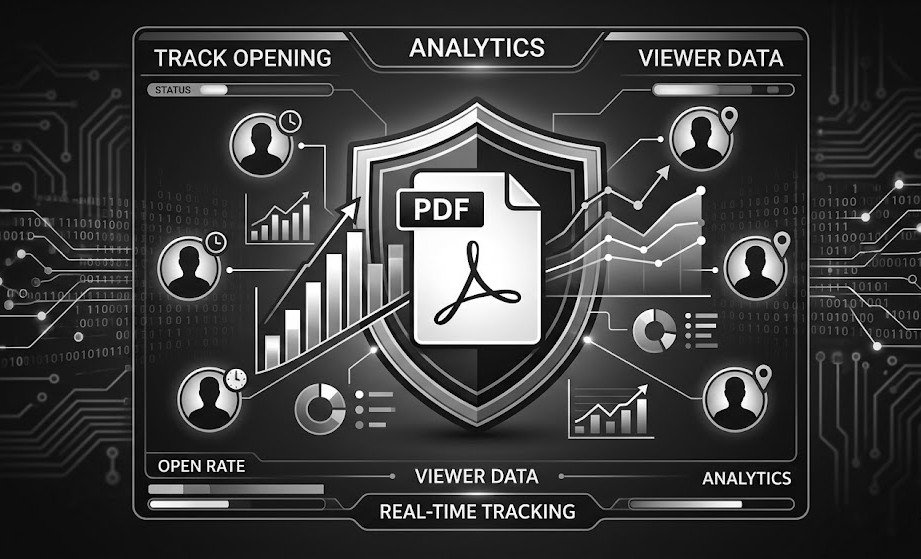
Here is how it works. You upload your PDF to a platform like OneLinkPDF. The platform generates a unique shareable link for your document. When someone clicks the link, the PDF opens in a secure browser-based viewer hosted on the platform. Every interaction is tracked automatically — when the document was opened, how long the viewer spent on each page, what device and browser they used, their approximate geographic location, and how many times they returned to view the document again.
This tracking is completely reliable because the document is viewed inside a controlled environment. Unlike embedded tracking pixels that depend on the recipient's PDF viewer cooperating, link-based tracking works every single time because the platform itself is the viewer. There is no way to open the document without the platform recording the event.
Beyond basic open tracking, most link-based platforms also give you page-level analytics. You can see that your prospect spent six minutes on page 4 (the pricing page) and only thirty seconds on page 7 (the case studies). This tells you exactly what they care about and what to address in your follow-up conversation. You can see if the document was accessed from multiple locations, which might indicate it was shared with other decision-makers — a positive signal in enterprise sales.
Pro Tip: When you share a PDF through a trackable link, create a separate link for each recipient. This way, you know exactly who opened the document, not just that someone with the link opened it. Most platforms let you generate multiple unique links for the same document in seconds.
What Data Can You Track With Link-Based PDF Sharing?
To give you a clear picture of what is possible, here is the kind of data you can expect from a proper link-based PDF tracking platform.
Open notifications tell you the moment someone opens your document. Many platforms send real-time email or push notifications so you can follow up while the document is still fresh in the recipient's mind. If a prospect opens your proposal at 2 PM, you can call them at 2:15 PM while they are still thinking about it.
View duration shows you how long the viewer spent with your document in total and on each individual page. A prospect who spent twelve minutes reading a ten-page proposal is clearly engaged. A prospect who opened and closed it in under a minute probably did not read it seriously.
Page-level engagement breaks down viewing time by page. This is incredibly valuable because it tells you what content matters to the reader. If everyone who opens your proposal spends the most time on the pricing page and skips the methodology section, you know to lead with pricing in your next conversation and maybe rethink whether the methodology section needs to be there at all.
Device and location data tells you what device the viewer used (desktop, mobile, tablet) and their approximate geographic location. This is useful for understanding how your documents are being consumed and for detecting unauthorized access — if your document meant for a client in Mumbai was opened from an IP address in another country, something might be off.
Return visits show you when the same viewer comes back to the document multiple times. A prospect who returns to your proposal three times over a week is seriously considering it. This is one of the strongest buying signals you can get from document analytics, and it is completely invisible with traditional email attachments.
How to Set Up PDF Tracking in Less Than Five Minutes
Setting up link-based PDF tracking is straightforward and does not require any technical skills. Upload your PDF to a secure sharing platform. Configure your preferred settings — password protection, view-only mode, link expiration, and watermarking if needed. Generate your shareable link. Send the link to your recipient through email, WhatsApp, Slack, LinkedIn, or any other channel.
From the moment the recipient clicks the link, every interaction is tracked and visible in your dashboard. There is no code to install, no Google Tag Manager to configure, no tracking pixels to embed, and no reliance on the recipient's email client cooperating with read receipt requests.
If you are sending important business documents — proposals, contracts, reports, pricing sheets, pitch decks — and you are not tracking how they are being consumed, you are operating blind. You are making follow-up decisions based on gut feeling instead of data. You are wasting time chasing prospects who never opened your document while ignoring ones who read it three times.
The tools to fix this exist, they are affordable, and they take less than five minutes to set up. The only question is how many more proposals you want to send into the void before you start tracking what happens after you hit share.
Pro Tip: Start by tracking your three most important document types — proposals, contracts, and client deliverables. Once you see the data from these, you will never go back to sending blind email attachments again.