You just finished a pricing proposal, a client contract, or a confidential report. You are about to share it as a PDF. But before you hit send, a thought crosses your mind — what if the wrong person opens this? What if the link gets forwarded to someone who was never supposed to see it? This is where password protecting your PDF link becomes essential.
Most people think password protecting a PDF means locking the file itself using Adobe Acrobat or a free online tool. And while that works to some extent, it has serious limitations. Once the recipient enters the password, they can download the file, save it locally, forward it freely, and you lose all control. The password only guards the front door — once someone is inside, there are no rules.
A better approach is to password protect the link itself, not just the file. When you protect the PDF link, the document stays hosted on a secure platform, the password is required every time someone tries to access the URL, and you retain the ability to change the password, revoke access, or expire the link at any time. In this guide, you will learn exactly how to do this step by step.
File-Level vs Link-Level Password Protection — What Is the Difference?
Before we get into the steps, it is important to understand the two fundamentally different ways you can password protect a PDF, because most people confuse them and end up choosing the weaker option.
File-level protection means you lock the PDF file itself using a tool like Adobe Acrobat, Preview on Mac, or free online services like Smallpdf and iLovePDF. You set a password, save the file, and then send it as an attachment or upload it to Google Drive. The problem is that once the recipient enters the password and downloads the file, the protection is essentially over. They now have a local copy. They can remove the password using free tools available online. They can forward the unlocked file to anyone. And you have absolutely no visibility into what happens next.
Link-level protection takes a completely different approach. Instead of locking the file, you upload the PDF to a secure sharing platform and generate a password-protected link. The document never leaves the platform. Every time someone clicks the link, they must enter the password to view it in the browser. They cannot download the file unless you allow it. You can change the password at any time without creating a new link. You can set the link to expire after a certain date. And you get full analytics on who accessed it, when, and for how long.
Think of it this way — file-level protection is like putting a lock on a suitcase and then handing the suitcase to someone. Once they open it, they own everything inside. Link-level protection is like keeping the suitcase in a vault and giving someone a visitor pass that you can revoke at any moment.
Pro Tip: If your PDF contains sensitive business information like pricing, financials, legal terms, or client data, always prefer link-level protection over file-level protection. The ability to revoke access after sharing is the single biggest advantage.
How to Password Protect a PDF Link — Step by Step
Now let us walk through the actual process of creating a password-protected PDF link. This method works for any type of document — proposals, contracts, invoices, reports, brochures, or premium content.
Step 1 — Upload Your PDF to a Secure Sharing Platform
The first step is to upload your PDF to a platform that supports link-level password protection. Tools like OneLinkPDF are purpose-built for this. You simply drag and drop your file, and the platform processes it for secure browser-based viewing.
Before uploading, make sure you are working with the final version of your document. Double-check for any tracked changes, comments, or hidden metadata that might be embedded in the file. Clean up the file name so it looks professional — something like "NDA-Agreement-ClientName-2026.pdf" rather than "draft_FINAL_v4_updated.pdf." These small details matter because some platforms display the file name to the viewer.
Step 2 — Enable Password Protection on the Link
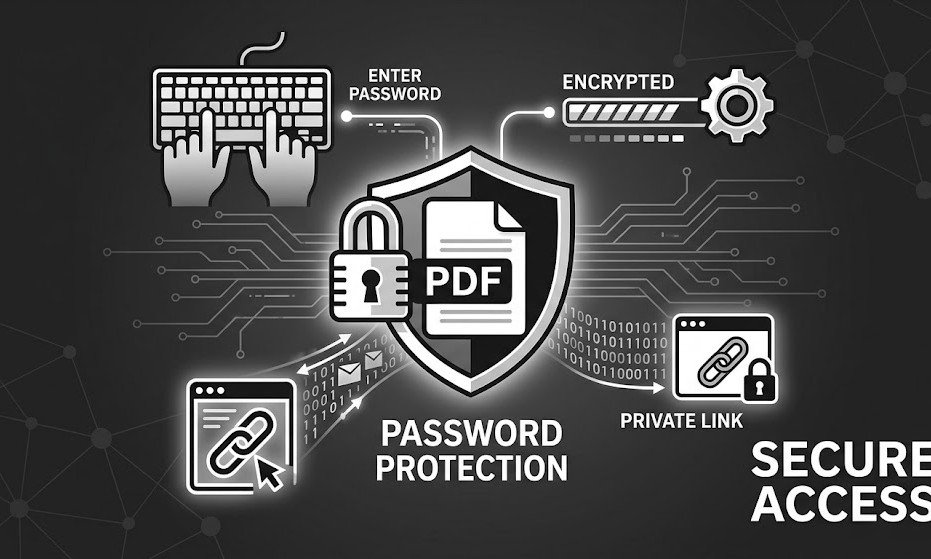
Once your PDF is uploaded, navigate to the sharing or permissions settings and enable password protection. This is different from encrypting the file itself. What you are doing here is adding a password gate to the URL. When anyone clicks the link, they see a password prompt before the document loads. Without the correct password, they see nothing.
Choose a strong password that is not easy to guess but also not so complex that your recipient struggles to type it. A mix of letters and numbers works well — something like "Proposal2026Q2" is strong enough for business use while being easy to communicate over the phone or in a separate message. Avoid passwords that contain special characters if you plan to share the password via SMS or WhatsApp, as autocorrect and formatting issues can sometimes alter them.
Pro Tip: Never send the password in the same email or message as the link. Always use a separate channel. For example, send the link via email and the password via WhatsApp or a phone call. This way, even if one channel is compromised, the document remains protected.
Step 3 — Configure Additional Security Layers
A password alone is good, but combining it with other security settings makes your document significantly more secure. Most secure PDF sharing platforms let you stack multiple protections on the same link.
Link expiration is the first thing you should set. If you are sharing a proposal that is valid for 30 days, set the link to expire after 30 days. There is no reason for your pricing information to be accessible six months from now. Once the link expires, anyone who clicks it — even with the correct password — will see an "access expired" message.
View-only mode prevents the recipient from downloading or printing the PDF. They can read every page in the browser, zoom in, and scroll through the document, but they cannot save a local copy. This is critical when combined with password protection because it ensures the document stays on the platform even after the password is entered.
Dynamic watermarking stamps the viewer's identity — typically their email address or IP address — on every page. If someone takes a screenshot and leaks it, the watermark traces directly back to them. This is especially important for financial documents, legal agreements, and proprietary content.
Download and print restrictions add another barrier. Even if someone has the password and can view the document, they cannot create a local copy through downloading or printing. This keeps the document within your control at all times.
Pro Tip: For maximum security, use this combination — password protection plus link expiration plus view-only mode. This three-layer setup covers ninety percent of business PDF sharing scenarios and takes less than a minute to configure.
Step 4 — Share the Link and Track Engagement
Once your password-protected link is ready, copy it and share it through your preferred channel. You can paste it in an email, send it via Slack or WhatsApp, include it in a LinkedIn message, or even embed it on a client portal. The link works on every device and browser — no special software required on the recipient's end.
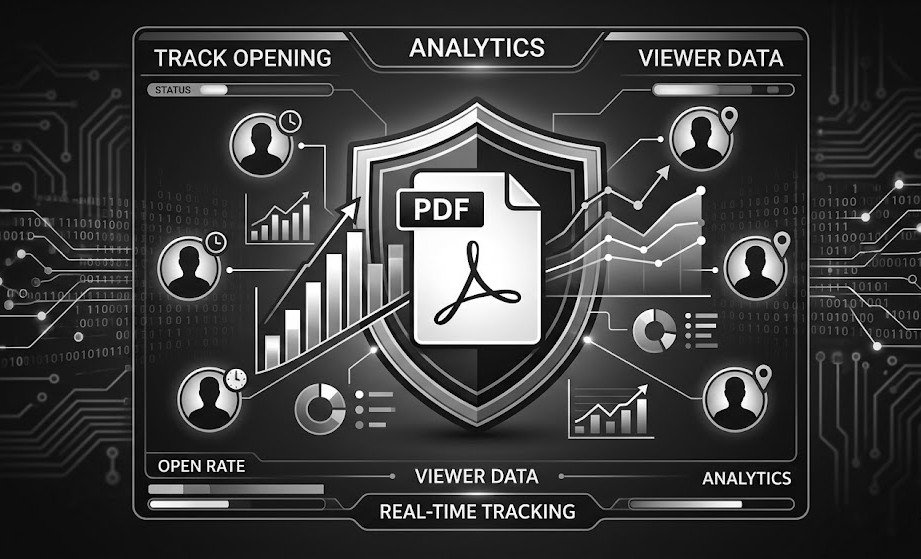
After sharing, this is where link-level protection really shines compared to file-level protection. With a platform like OneLinkPDF, you can see exactly when the document was opened, how long the viewer spent on each page, what device they used, and their approximate location. If the document was never opened, you know to follow up. If it was opened five times in two days, you know your prospect is seriously interested.
This level of visibility is impossible with traditional password-protected PDF attachments. When you lock a file with Adobe Acrobat and email it, your tracking ends the moment you click send. You have no idea if the attachment was opened, forwarded, or ignored.
When to Use File-Level vs Link-Level Protection
Both approaches have their place, and the right choice depends on your specific situation.
File-level protection makes sense when you need to share a PDF for offline use — for example, if the recipient needs to access the document in areas with no internet connectivity. It also works for archival purposes where you want to store an encrypted copy on a hard drive or USB device. In these cases, locking the file with Adobe Acrobat or a similar tool is practical and sufficient.
Link-level protection is the better choice for every scenario that involves active sharing with other people. Business proposals, client deliverables, sales decks, legal documents, financial reports, real estate brochures, course materials, and any PDF that contains time-sensitive or confidential information should be shared through a password-protected link. The ability to revoke access, track engagement, and enforce view-only mode makes link-level protection vastly superior for professional use.
If you are unsure which approach to use, ask yourself one question — do I need to control what happens to this document after I share it? If the answer is yes, link-level protection is what you need.
Common Mistakes When Password Protecting PDF Links
Even with the right tools, there are several mistakes that can weaken your document security. The most common one is sending the password and the link together in the same message. If someone intercepts that email or message, they have everything they need to access your document. Always send the password through a separate channel — a different messaging app, a phone call, or even a text message.
Another mistake is using weak or obvious passwords. "123456," "password," or the client's company name are all terrible choices that can be guessed easily. Use a combination of letters, numbers, and at least eight characters. Better yet, use a random phrase like "BlueMango42Report" that is easy to remember but hard to guess.
Forgetting to set an expiration date is another oversight that creates long-term risk. A password-protected link without an expiry is still accessible forever — all someone needs is the password. Set an expiration that matches the relevance window of your document. A proposal valid for two weeks should have a link that expires in two weeks.
Using Google Drive or Dropbox public links and thinking they are "password protected" is also a common misconception. A standard Google Drive "anyone with the link can view" share is not password protected at all. While Dropbox does offer password protection on shared links, it is only available on paid plans, and the feature set is limited compared to purpose-built PDF sharing platforms.
Pro Tip: Keep a record of which passwords you used for which documents and when each link expires. A simple spreadsheet with columns for document name, link URL, password, expiry date, and recipient will save you from confusion when you are managing multiple shared documents.
Why Link-Level Protection Is the Future of PDF Sharing
The way we share documents is fundamentally changing. Remote work, global teams, and digital-first business operations mean that PDFs are constantly moving between people, devices, and geographies. In this environment, locking a file and emailing it is like putting a padlock on a paper envelope — it provides a false sense of security.
Link-level password protection, combined with viewer tracking, expiration controls, and download restrictions, gives you the kind of control that modern business demands. You know who is reading your documents. You know when they are reading them. You can cut off access the moment a deal falls through or a relationship ends. And you never have to worry about an outdated proposal floating around the internet with your old pricing on it.
The best part is that it takes less than a minute to set up. Upload your PDF, set a password, configure your security preferences, and share the link. Your recipient clicks, enters the password, and reads — all within the browser, all within your control.
If you have been relying on Adobe Acrobat's password feature or Google Drive's sharing permissions to protect your sensitive documents, it is time to upgrade to a solution that gives you real security, real visibility, and real control over your shared PDFs.